
Exclusive IPD distributor for the Czech and Slovak RepublicsOriginal components · CAD/CAM libraries · technical support+420 604 483 343obchod@exklusiv-dent.cz
TECH & LITEExocad3ShapeDental Wings

IPD digital geometry

Software libraries that connect the scan to the final component

A library is an interface, not an isolated fileIPD Solutions Map · clinic ↔ laboratory

The correct library is more than an item in CAD software. It is a precise geometric agreement between the implant, platform, scan body, restoration type and selected prosthetic component.

IPD TECH and LITE software libraries for CAD/CAM
Scan bodyinput geometry
Librarydigital link
Componentfinal seating

One connected geometry

What must match within the library

The implant brand name alone is not enough. All decisive parameters must be identified within one chain for the design to be correct.

01

Implant system and model

Manufacturer, specific implant line and exact prosthetic platform.

02

Scanning level

Implant, Multi-Unit abutment, another transepithelial abutment or analog in the model.

03

Exact scan body

Reference, height, indexing and geometric branch of the scan body used.

04

Indication and interface type

Single crown, bridge, full-arch, direct interface or restoration fixed on a Ti-base.

05

Final component

Ti-base, Multi-Unit, custom abutment, ipdMilled or another library-supported option.

Two library routes

TECH and LITE are not interchangeable names for the same thing

Both routes can lead to high-quality CAD design, but they use different scanning inputs. The deciding factor is the specific clinical-laboratory protocol.

IPD TECH

Route using IPD scanning geometry

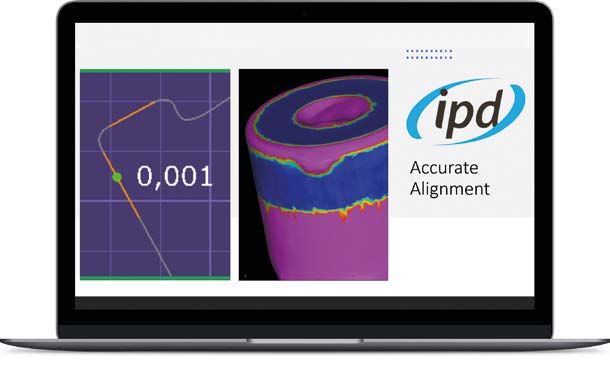
The TECH library connects to the corresponding IPD scanning solution. It preserves a defined relationship between the scan body, platform and restorative component.

  • IPD scan body or scanning component
  • Clearly defined library branch
  • Selection by platform, indication and component
IPD LITE

Route for supported OEM and third-party scan bodies

The LITE library allows use of supported scan bodies outside the main TECH geometry. Similar shape or a matching platform is not enough; the scan body must be explicitly supported in the library.

  • Verified exact scan-body reference
  • Correct platform and scanning level
  • Verification of the supported final component

Installation without blind spots

Safe procedure for installation or updates

The exact location differs by CAD system and distribution version. The principle is the same: complete library, correct folder and clear separation of versions.

Do not mix old and new files.

Archive the original folder first. Copy the new version as a complete package, close the software during installation and restart it afterwards.

  1. 1

    Verify the library name and version

    System, platform, TECH/LITE, scan body and target component.

  2. 2

    Back up the original folder

    This allows rollback and prevents invisible mixing of different geometry versions.

  3. 3

    Copy the complete package, not individual items

    Transfer the complete contents of the product folder into the corresponding library folder of the CAD software.

  4. 4

    Install analog libraries in Model Creator

    Data for prosthetic restorations and data for digital analogs may be stored in separate folders.

  5. 5

    Restart and verify with a test case

    Check the displayed component, indexing, seating and correct design branch.

Exocad: DentalDB → open file location → DentalCADApp → library → implant
Model Creator: library → modelcreator → implants

Diagnostics

When the restoration looks correct but the seating does not match

A visible gap or inability to insert the Ti-base into the cavity often has more than one cause. The entire digital chain must be checked.

A different scan body from the one defined in the library

Similar appearance does not mean identical library geometry.

Incorrect platform

The implant model or platform was assigned from the brand name alone.

Direct interface versus Ti-base

The library is using a different restorative route from the physical component.

Old version or cache

A project may retain previously loaded data even after files are replaced.

Mixed library folders

Some files originate from a different version or geometric branch.

Model a tolerance

For a verification model, check the digital analog, print calibration and selected tolerance.

Related pages

From the library back to the complete workflow

New practical workflow

Provisional abutment: from the scan body used to HIGH / MID / LOW

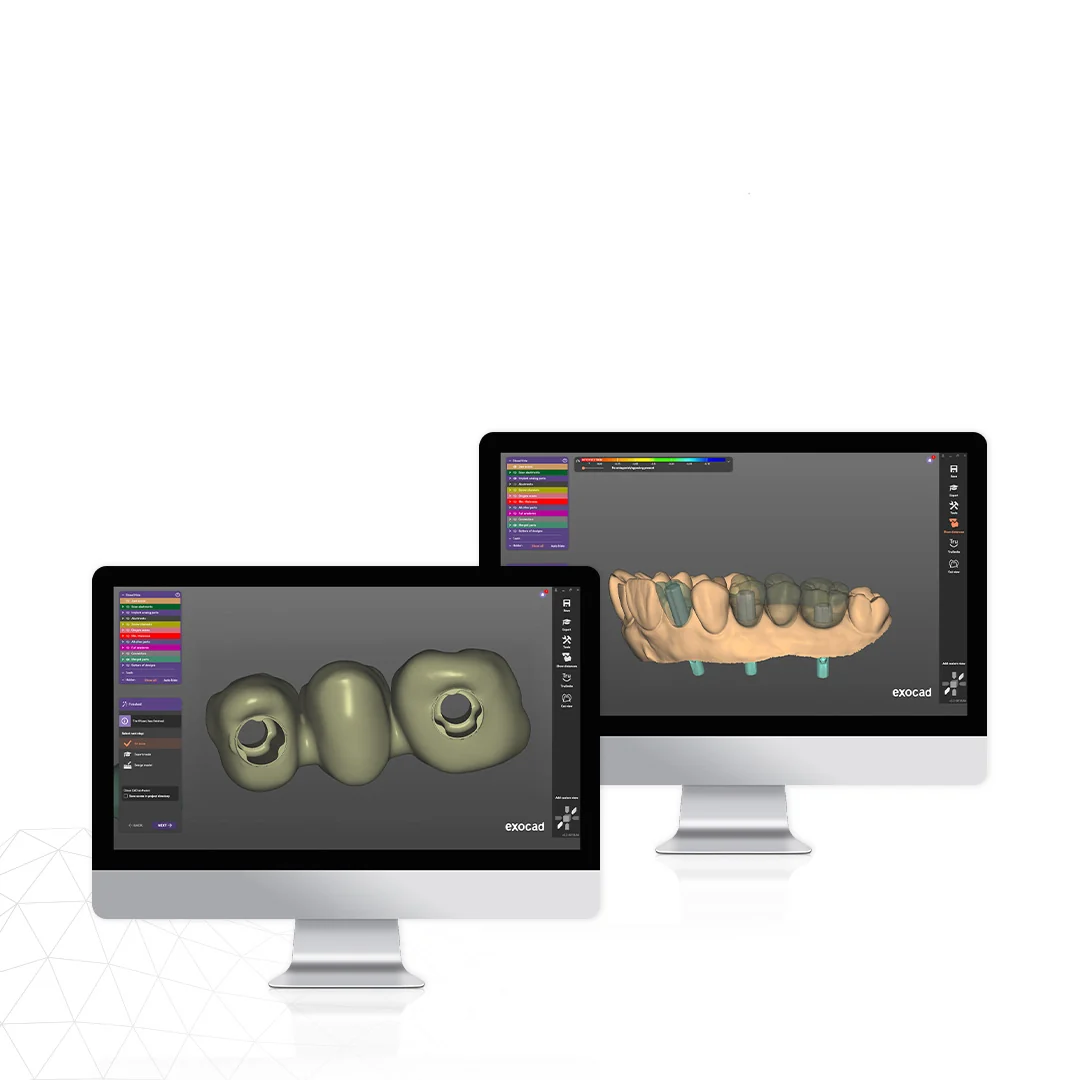
The provisional-abutment library connects the scan body, TECH/LITE branch, crown or bridge variant -06/-07 and three cementation heights. We have prepared a dedicated workflow for Exocad and 3Shape, including a route with a supported OEM scan body.

CAD design of a provisional restoration using the IPD provisional-abutment library

Technical support for the Czech and Slovak Republics

Not sure about the library, scan body or platform?

Send the implant code, platform, scan-body reference, CAD system used and intended component. We will verify the appropriate library route before design begins.

Common questions

IPD software libraries in practice

TECH connects to IPD scanning geometry. LITE works with explicitly supported OEM or third-party scan bodies. The exact reference, platform, indication and final component determine the correct route.
No. The model, platform, scanning level, scan body, restoration type, interface and physical component must also be verified.
Check the target folder, completeness of the copied files, whether the CAD software was closed during installation and whether it was restarted afterwards. Digital analogs may require separate installation in Model Creator.
We do not recommend this unless the installation instructions explicitly say so. Archive the original folder and install the complete new version to avoid mixing different geometries.
The implant system and platform, photograph or reference of the scan body, CAD software and version, restoration type, planned component and, where useful, a screenshot showing the selected library name.
They are three cementation heights for the provisional abutment in the CAD library, not gingival heights. If a lower option is selected, the physical component after modification must correspond to the same library height.
Yes, but only if that exact scan body is explicitly supported by the corresponding IPD LITE library for the platform and final component. The CAD project must use the exact scan body that was physically used during scanning. Open the practical workflow →

Libraries and version management

IPD CAD/CAM libraries are available free of charge

IPD libraries are regularly tested and updated. We provide them free of charge and help with TECH/LITE branch selection, installation and placement in the correct folder. We send the current link on request so that customers work with one unambiguous version.

exocad DentalCAD 3Shape Dental System Dental Wings PIC dental Renishaw Blender for Dental
Free

No licence fee for the IPD library package.

Controlled version

We send the current link on request for traceability.

Import help

We verify the system, platform, scan body and target component.

Availability of a specific CAD system and library branch may vary according to the implant, platform, scan body and intended component.

e-dent logo

I am a dental professional within the meaning of Section 2a of Czech Act No. 40/1995 Coll., on advertising regulation. I confirm that I am authorised to access content intended for professionals.